Teams
Teams let you group your production staff under one umbrella so that every show you create is automatically accessible to the right people — no per-show invites required.
What is a team
A team is a shared workspace. When a show belongs to a team, every member of that team automatically has access to it based on their role — no manual invitations needed for each event.
Teams are ideal for:
- Production companies with a consistent crew working across multiple events
- In-house AV departments at venues or corporations
- Any situation where the same group of people works on every show
Shows that don't belong to a team are Personal shows — only you can see them unless you share them individually.
Roles & permissions
Producer
- ✓ Create and manage shows
- ✓ Invite and manage team members
- ✓ Edit all rundowns and cues
- ✓ Share shows and manage access
- ✓ Delete shows and rundowns
Show Caller
- ✓ View all team shows
- ✓ Edit rundowns and cues
- ✓ Call shows live
- ✗ Cannot manage team members
- ✗ Cannot delete shows
Crew Member
- ✓ View all team shows
- ✓ Follow live cue tracking
- ✗ Cannot edit rundowns
- ✗ Cannot call shows
- ✗ Cannot manage team
License types
ShowCall uses license types to determine what each user can do across the platform:
- Team License (Producer) — Full platform access. Manage teams, create unlimited shows, add Show Caller seats.
- Individual License (Show Caller) — Personal show management. Can be added to teams as a Show Caller.
- Free (Crew Member) — Read-only access to shows they've been granted access to. No login required if accessing via a share link.
A Producer's Team license covers the entire team — you don't need to purchase individual licenses for Show Callers you add to your team.
Creating a team
To create a team, navigate to Teams in the left sidebar and click + New Team. Give your team a name (your company or production brand works well) and confirm.
Once created, you can invite members from the Team Management page:
- Open the team from the Teams page
- Click Invite Member
- Enter the person's email address
- Select their role: Show Caller or Crew Member
- Click Send Invitation
They'll receive an email invitation. Once they accept and create (or log into) their account, they'll have access to all team shows automatically.
You can change any team member's role at any time from the Team Management page — no need to re-invite them.
Adding a show to a team
When creating a new show, Step 2 (Team & Sharing) lets you assign it to a team. Select your team from the Add to Team dropdown.
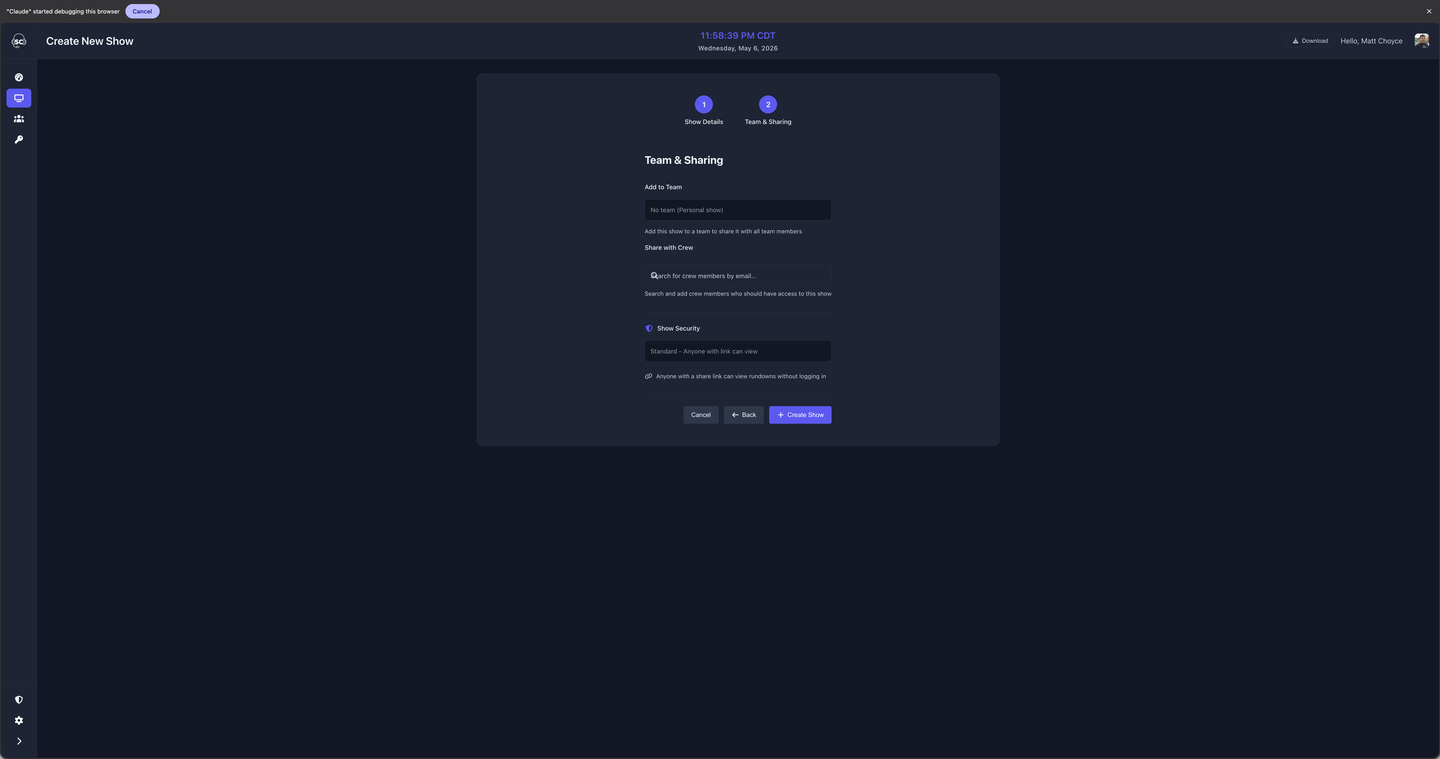
Once a show is assigned to a team, all team members see it in their My Team Shows list automatically. You can also move an existing personal show to a team from the show's Sharing tab.
Team shows view
The Shows page is divided into three sections:
- My Shows — Shows you own personally
- My Team Shows — Shows owned by your team that you have access to
- Archived Shows — Shows that have been archived (hidden from the main list but not deleted)
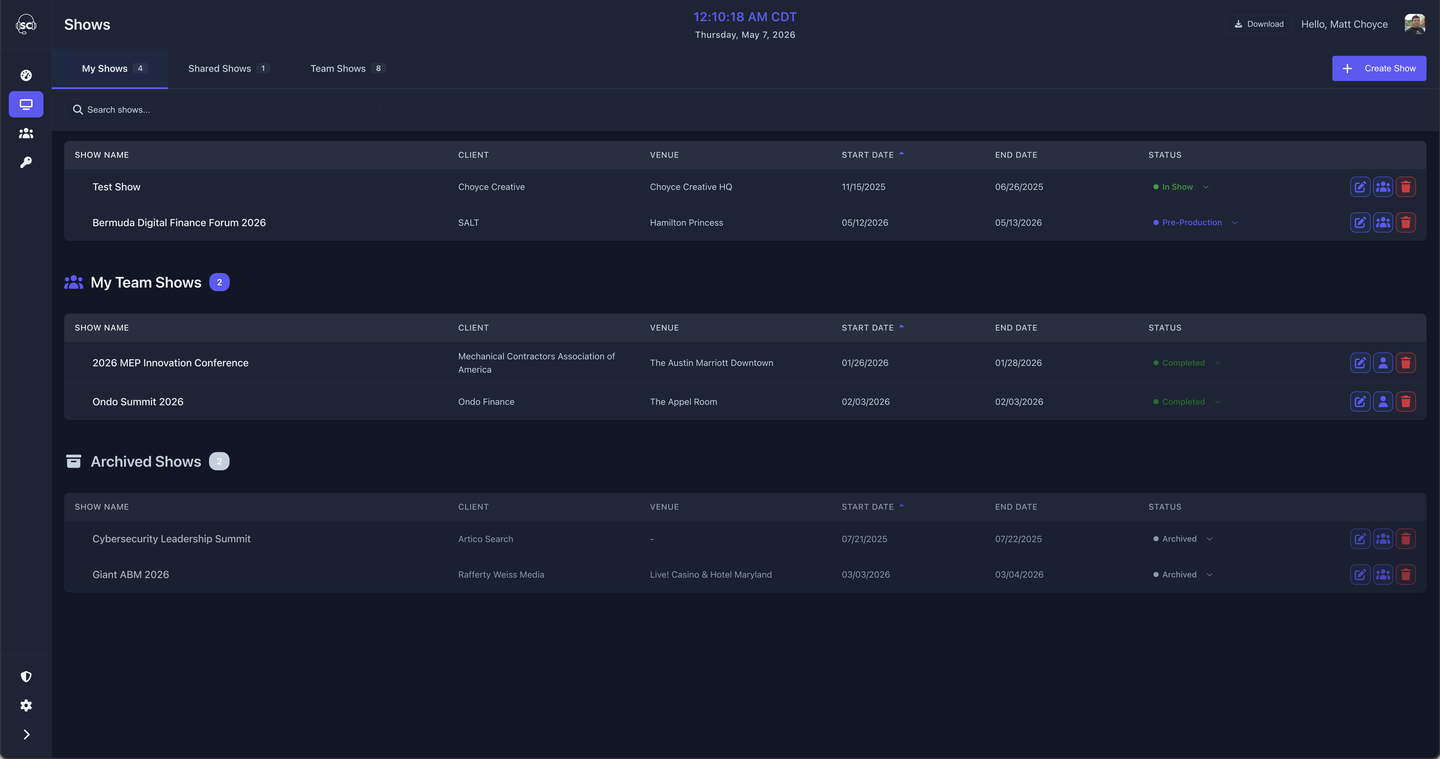
Archiving hides a show from the main list without deleting it — useful for completed events you want to keep for reference. Deleted shows cannot be recovered.