Running a Show
ShowCall is built for the moment when the doors open. This guide covers everything you need to call cues confidently, track time accurately, and keep your crew informed throughout the event.
Before show day
A few things to check before going live:
- Set a Hard Start time on your first cue so wall-clock times are accurate throughout the day
- Share a read-only link with your crew so they can follow along on their own devices — see Sharing
- Open the rundown on the machine you'll be calling from and confirm it shows Synced in the toolbar
- If you're using Digital Signage, open that display on a second screen or broadcast monitor before the show starts
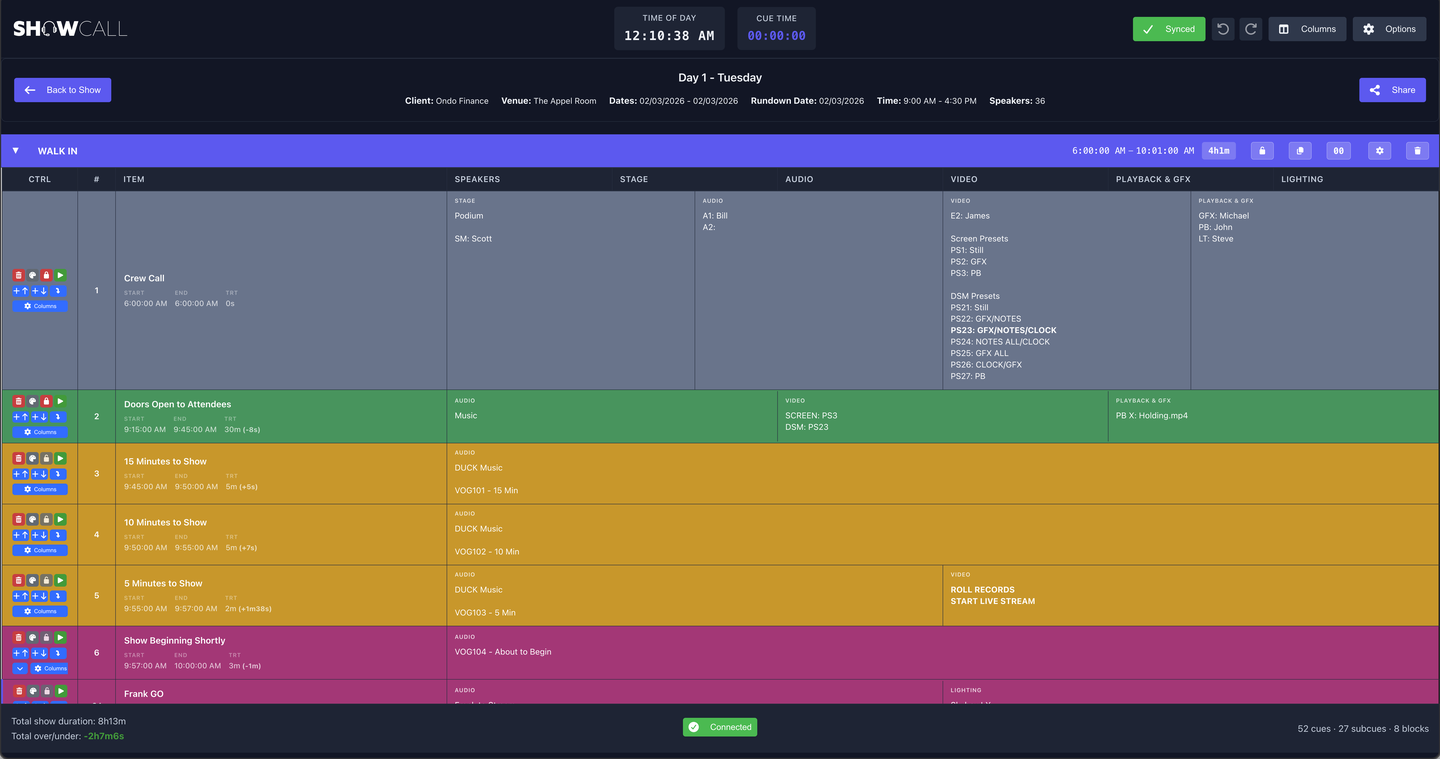
The live toolbar
The toolbar at the top of the rundown editor contains everything you need at a glance:
- TIME OF DAY — The current wall-clock time, always visible
- CUE TIME — A countdown or count-up timer for the active cue
- Synced / Pending Sync — Green means all changes are saved to the cloud; amber means a save is in progress
- Undo / Redo — Step back or forward through recent changes
- Columns — Toggle and size your columns
- Options — Export, signage, tracking, and utility tools
- Share — Generate or manage share links for crew
The toolbar is always fixed at the top of the page — it stays visible even when you scroll deep into a long rundown.
Calling cues
To mark a cue as active (called), click the play button on the left control strip of that row, or press Space when the row is selected. The cue highlights and the CUE TIME timer starts.
The control strip on each cue row (the left-side icon cluster) gives you:
- ▶ Play — Start this cue / mark it as called
- ↑ ↓ — Move the cue up or down in the rundown
- 🔒 — Lock the cue against accidental edits during a live show
- 🗑 — Delete the cue
Tracking highlight
When you call a cue, ShowCall highlights it with your tracking color (default: green). This color is visible to anyone following along on a shared link, so your entire crew can see where you are in the rundown in real time.
To change the highlight color, go to Options → Tracking Highlight Color. To clear all tracking and start fresh, use Options → Clear Tracking.
Timer & over/under tracking
The CUE TIME display in the toolbar counts up from the moment you call a cue. When the cue's planned duration is reached, it turns red to signal you're running long.
Over/under time
ShowCall continuously calculates whether your show is running ahead or behind schedule based on the Hard Start anchors in your rundown. The over/under delta is displayed in the block header bar for each block — green means on time or early, red means over.
At any point you can reset the over/under counter from Options → Clear Over/Under Times — useful if you intentionally ran long on a segment and want to start fresh tracking from the current position.
Version history
ShowCall automatically saves a snapshot of your rundown every time changes are made. To review or restore a previous version, go to Options → Version History.
If your rundown uses subcues (nested items under a parent cue), use Options → Re-number Subcues to keep numbering sequential after any additions or deletions.
Digital signage display
ShowCall includes a full-screen signage view designed to be shown on a confidence monitor, backstage display, or broadcast screen. It shows the current and next cue in large, high-contrast text that's readable from across a room.
To open it, go to Options → Digital Signage Display. This opens a new browser tab formatted for a full-screen display — drag it to your second monitor and press F11 (Windows) or enter fullscreen from the browser menu.
- The signage view updates in real time as you advance cues
- It shows the current cue name, time remaining, and the next cue
- No login required — it reads from your live rundown automatically
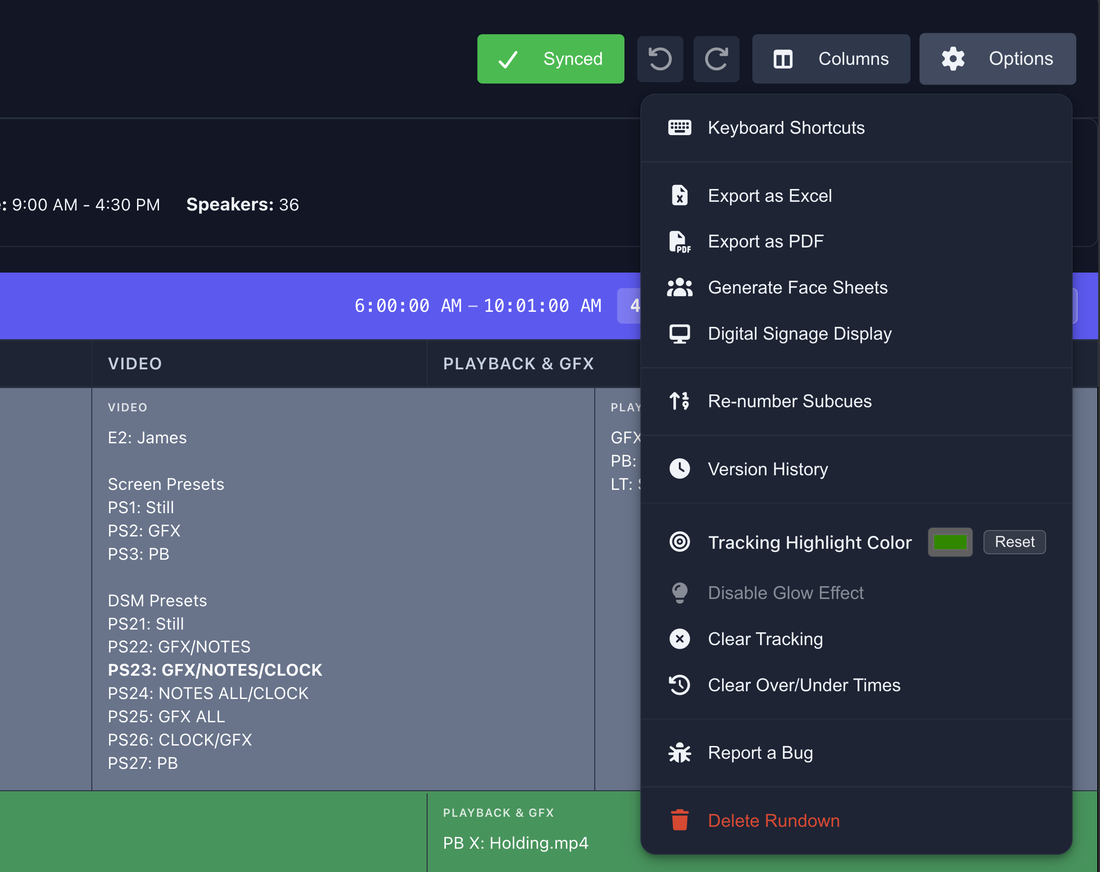
Options & export utilities
The Options menu contains several useful tools for show day and post-show:
- Keyboard Shortcuts — Quick reference for all shortcuts without leaving the rundown
- Export as Excel — Download a .xlsx version of the rundown
- Export as PDF — Generate a print-ready PDF of the full rundown
- Generate Face Sheets — Create speaker face sheets from your rundown data
- Re-number Subcues — Fix subcue numbering after edits
- Version History — Browse and restore previous rundown states
- Tracking Highlight Color — Customize your live tracking color
- Clear Tracking — Remove all active cue highlights
- Clear Over/Under Times — Reset schedule tracking
- Delete Rundown — Permanently remove this rundown (cannot be undone)