Sharing & Collaboration
Share your rundown with the whole crew — no account required for viewers. Generate a read-only link in seconds, invite collaborators with edit access, or export a polished PDF for pre-show distribution.
Share links
A share link gives anyone a read-only, live view of your rundown. It updates in real time as you make changes — your crew sees every edit and every cue call the moment it happens, from any device with a browser.
To create a share link:
- Open the rundown you want to share
- Click Share in the top-right of the toolbar
- The Share & Invite dialog opens on the Share Link tab
- Click Create Share Link
- Copy the generated URL and send it to your crew
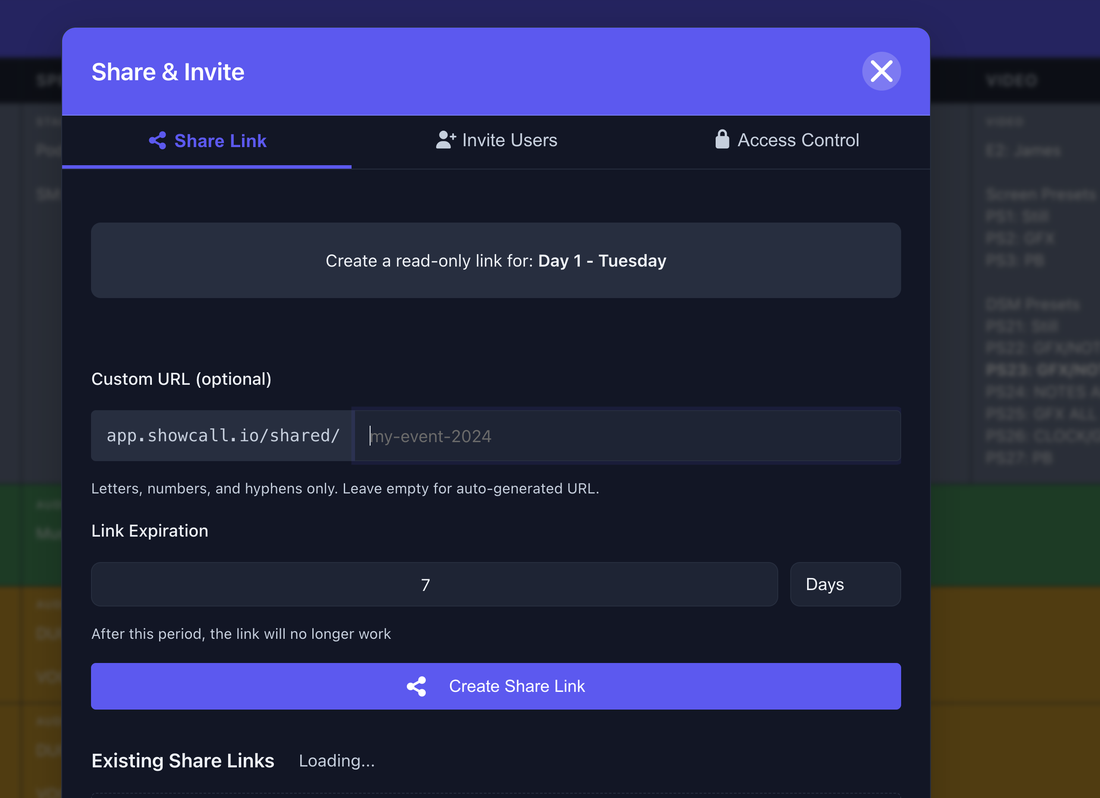
Anyone with the link can view the rundown — they don't need a ShowCall account. This makes it easy to share with clients, venue staff, or speakers.
Custom URL & link expiry
Instead of a random auto-generated URL, you can set a custom URL slug that's easy to remember and type — for example app.showcall.io/shared/my-event-2026.
Rules for custom URLs:
- Letters, numbers, and hyphens only
- Must be unique — ShowCall will tell you if it's already taken
- Leave the field empty to get an auto-generated URL instead
Link expiration
Set a Link Expiration in days. After this period the link stops working automatically — useful for client-facing rundowns that should only be accessible during the event window. The default is 7 days. Set it to a large number (e.g., 365) for a permanent link.
All active share links for a rundown appear in the Existing Share Links section at the bottom of the dialog. You can revoke any link from there.
Invite users
To give someone an actual ShowCall account with access to your show, use the Invite Users tab in the Share & Invite dialog.
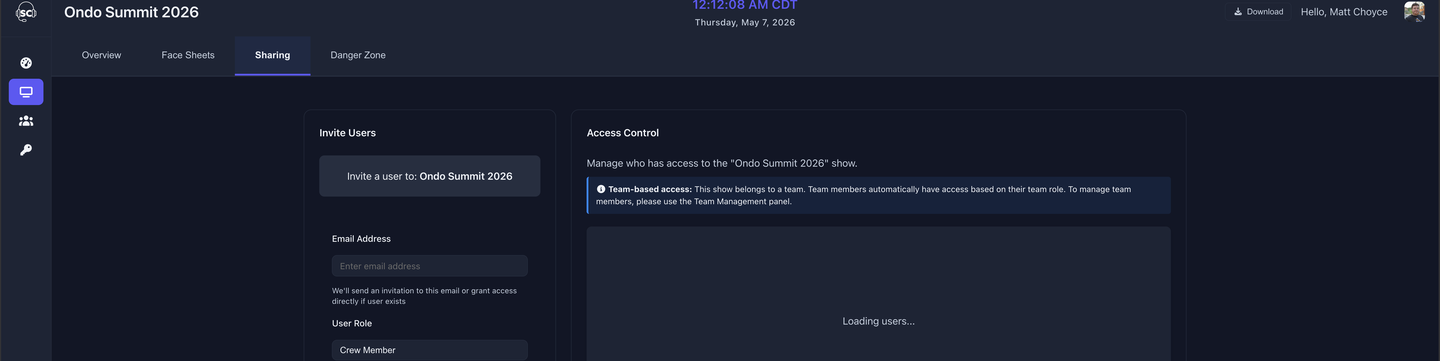
Enter the person's email address and select their User Role:
- Crew Member — Read-only access. Can view the rundown but cannot edit anything.
- Show Caller — Can edit cues, call a show, and manage rundowns within this show.
If the email address already has a ShowCall account, they'll get access immediately. If not, they'll receive an invitation email to create one.
If your show belongs to a team, team members automatically get access based on their team role. Use the Team Management panel to manage those members — individual show invites are for guests outside your team.
Access control
The Access Control panel (right side of the Sharing tab) shows everyone who currently has access to the show and their role. From here you can:
- See all invited users and their permission levels
- Remove a user's access at any time
- Change a user's role between Crew Member and Show Caller
Show security
When creating a new show, the second step lets you set the Show Security level:
- Standard — Anyone with a share link can view rundowns without logging in
- Private — Viewers must be signed into ShowCall to access any shared link for this show
You can change this setting later from the show's Sharing tab.
Export to PDF & Excel
ShowCall can export your rundown in two formats, both accessible from Options in the rundown toolbar:
Export as PDF
Generates a print-ready PDF of the complete rundown, including all visible columns. The PDF respects your current column layout — hide any columns you don't want to appear before exporting. Use this for pre-show distribution, printed callsheets, or archiving.
Export as Excel
Downloads a .xlsx spreadsheet of the rundown. All columns and cue data are included. Useful for clients who want to manipulate the data in their own tools, or for archive copies.
Generating speaker face sheets is a separate feature available from Options → Generate Face Sheets. See the Face Sheets section for the full workflow.