Face Sheets
Face sheets are speaker reference documents used by stage managers, floor directors, and backstage crew to quickly identify who's presenting in each session — headshot, name, title, on-stage position, and all. ShowCall generates them automatically from your rundown in seconds.
What are face sheets
A face sheet represents one session in your show — a panel, a keynote, a breakout — and lists every speaker in that session with their headshot, name, title, company, and on-stage position. Printed or displayed on a tablet, they give your backstage crew instant visual recognition of every person walking onto the stage.
In ShowCall, face sheets live inside a show alongside your rundowns. You build a library of speakers once, then generate face sheets directly from your cue data — no copy-pasting names into a separate tool.
- Add your speakers to the show and upload their headshots
- Generate face sheets from your rundown — ShowCall matches speaker names in your cues to your speaker library automatically
- Arrange the stage layout, then export to PDF or share a live link with your crew
Adding speakers
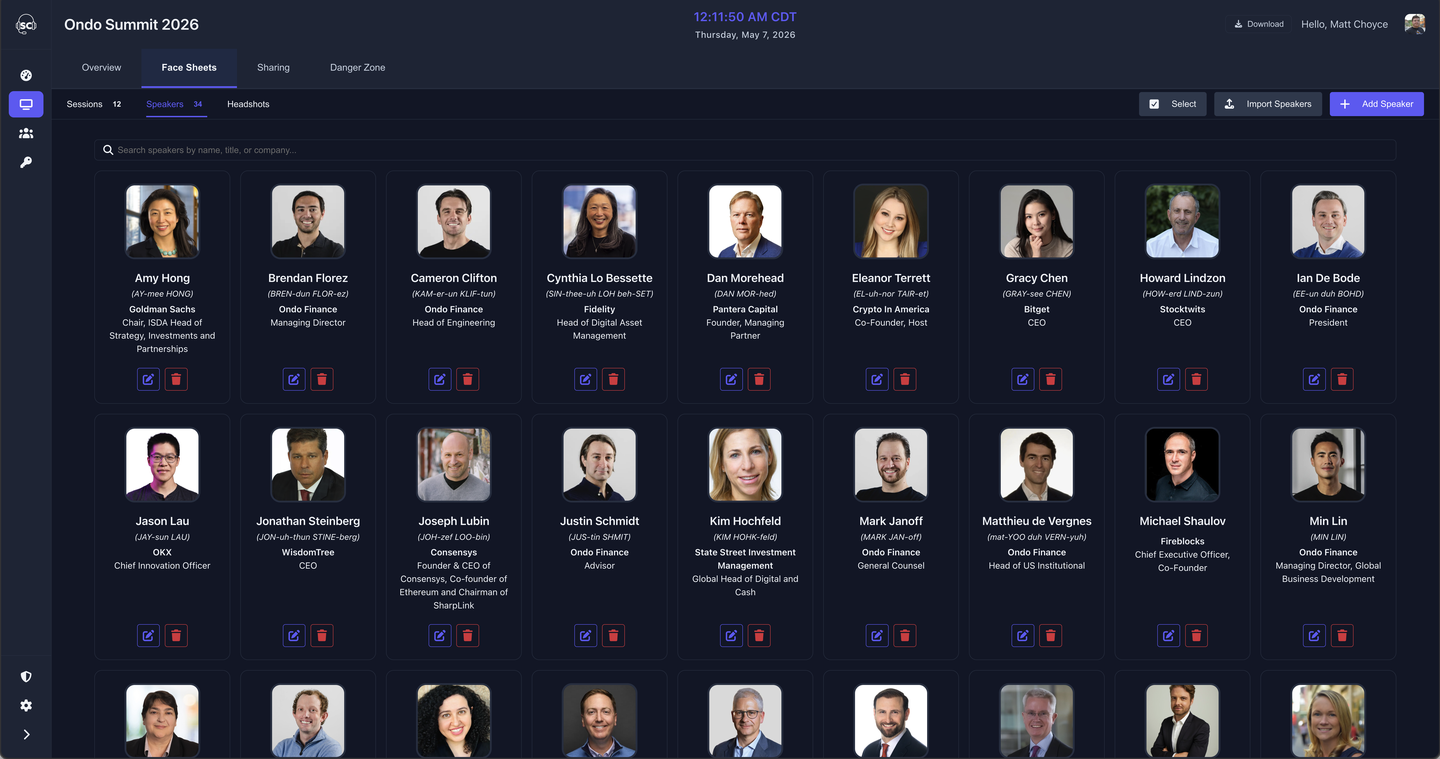
Your speaker library lives on the Speakers tab inside your show. Every speaker you add here is available across all face sheets for that show.
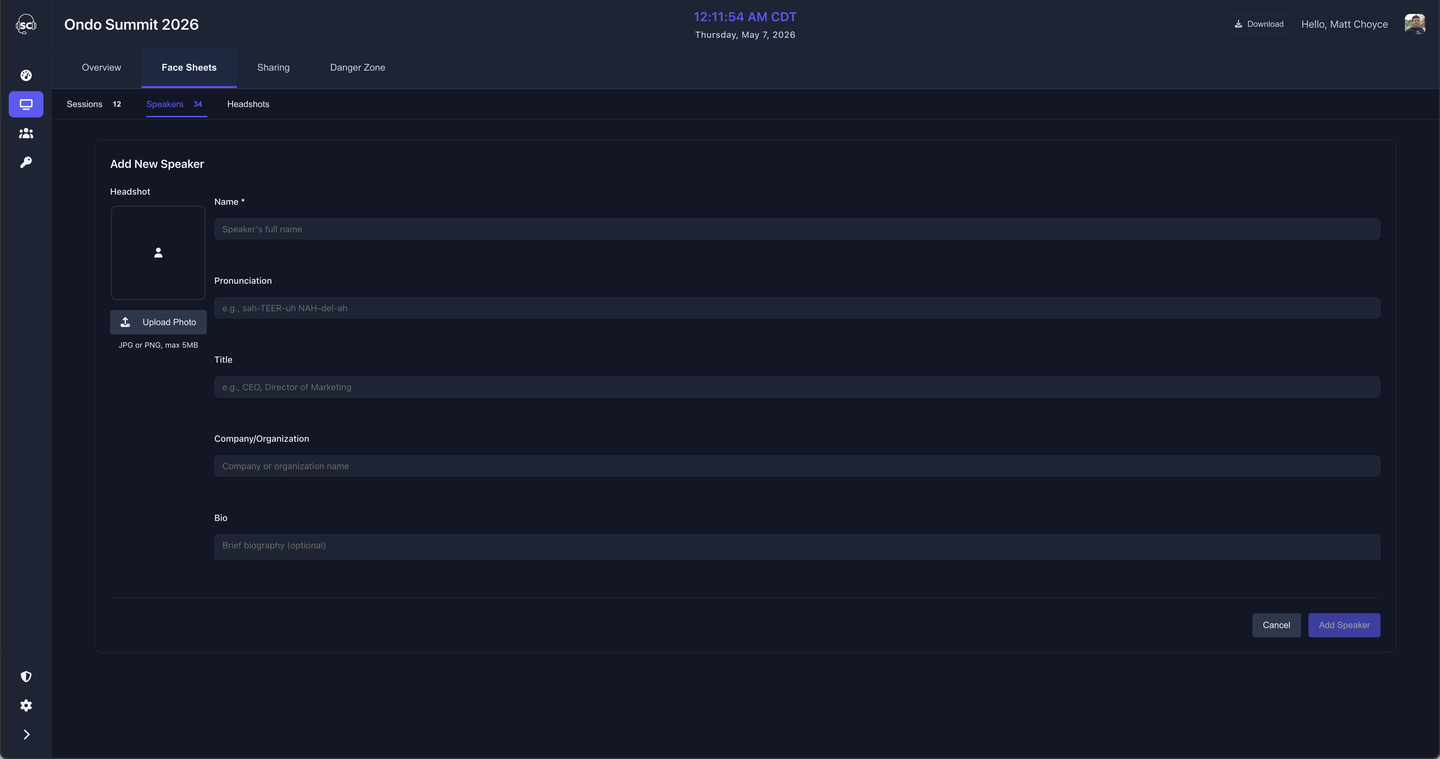
To add a speaker, click + Add Speaker and fill in their details:
- Name — Required. This is what ShowCall matches against names in your rundown cues.
- Pronunciation — An optional phonetic guide for your emcee or caller — e.g., "JEF-ree SHER-man"
- Title — Job title or role
- Company — Organization or affiliation
- Bio — Speaker biography, shown in exported face sheets
- Headshot — Upload a JPG or PNG (up to 5 MB)
Import speakers
If your speaker list already lives in a spreadsheet, use Import Speakers to bring them all in at once. Click Import Speakers in the toolbar, then upload a CSV or Excel file.
ShowCall displays your spreadsheet columns and lets you map each one to the correct field — Name, Title, Company, Bio, and more. It also checks for duplicates against your existing speaker library before importing.
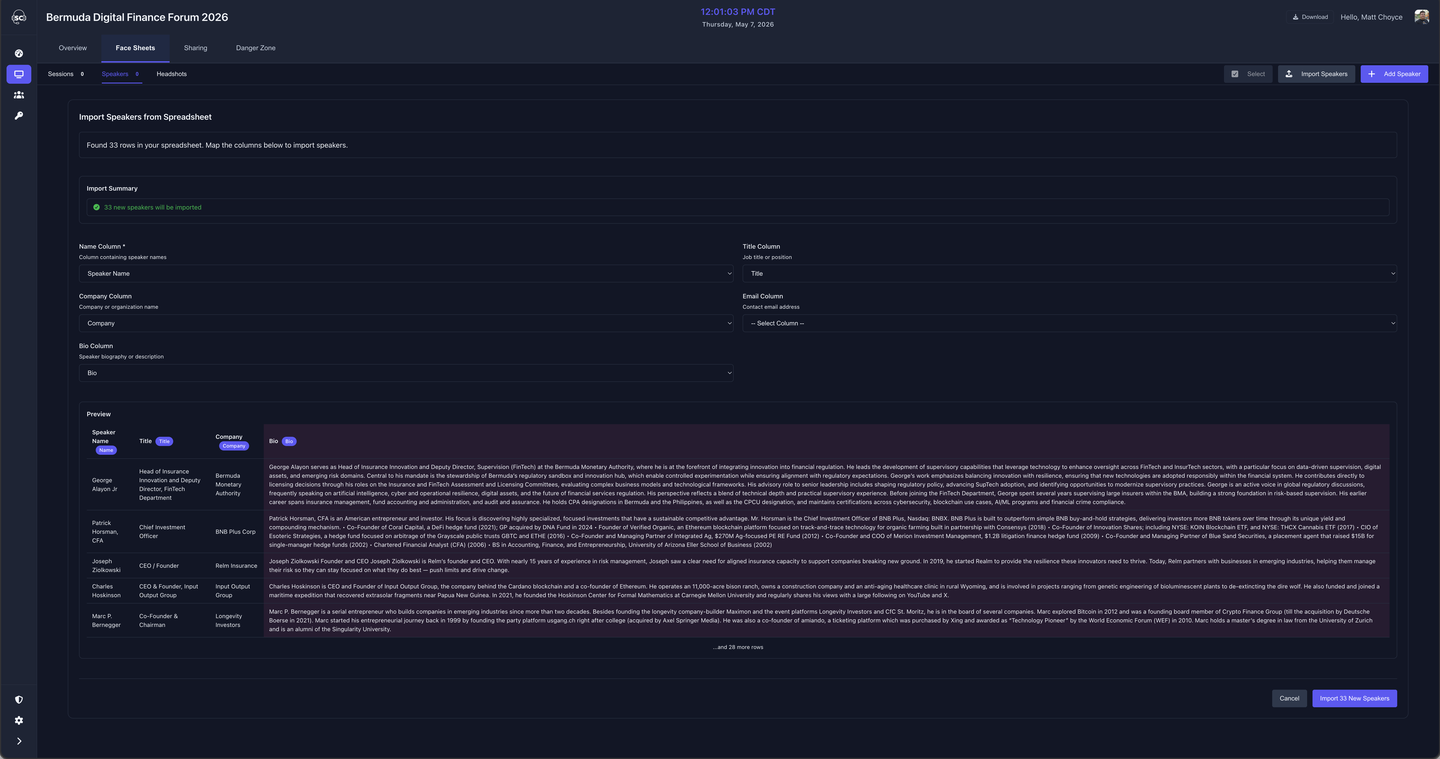
After mapping, ShowCall shows a preview of the speakers it's about to create so you can confirm before committing.
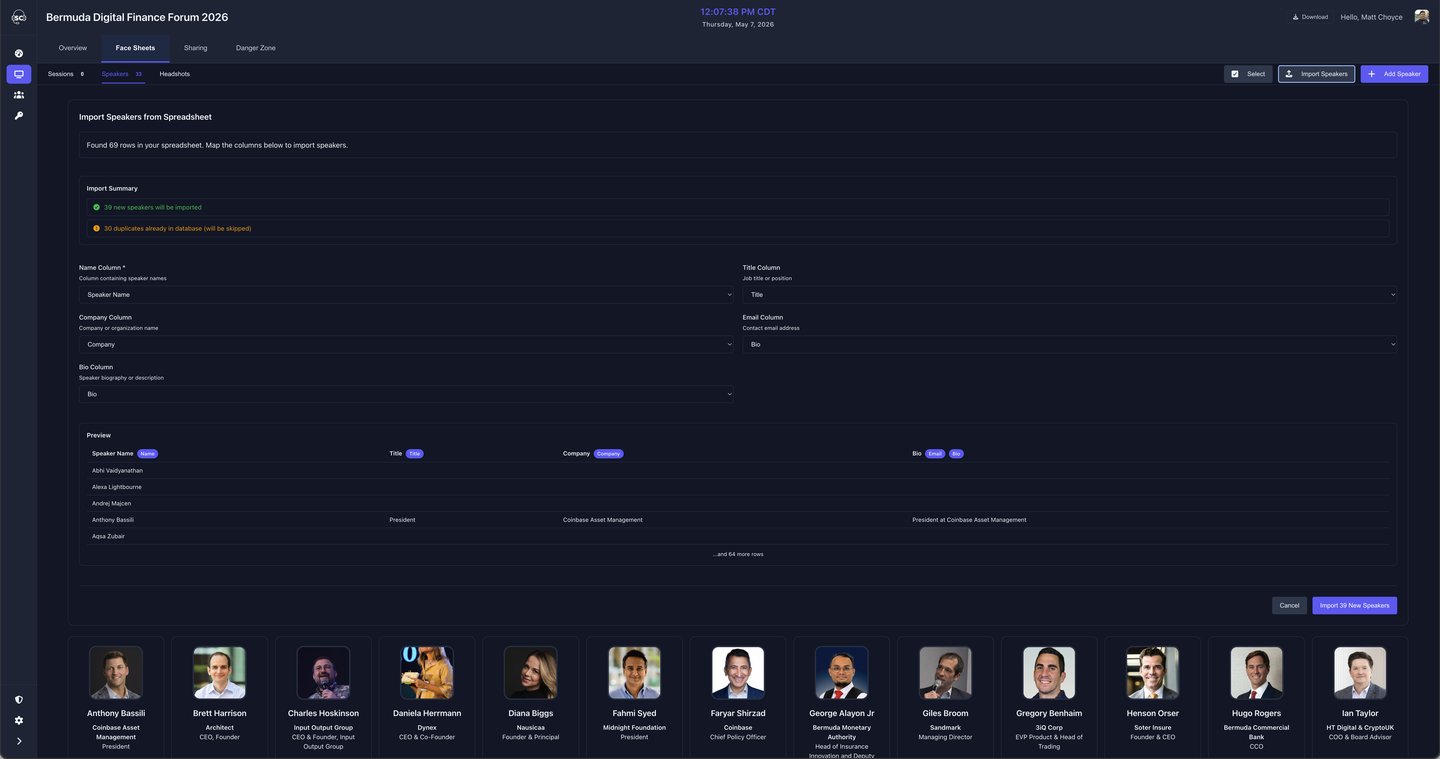
Bulk import brings in the text fields only. Use the Headshots tab afterward to bulk-upload photos for your imported speakers.
Headshots
The Headshots tab is a dedicated bulk upload tool. Instead of adding photos one speaker at a time, you can select your entire folder of headshot images at once and let ShowCall match them to speakers automatically.
Click Upload Headshots and select as many image files as you like. ShowCall parses the filename of each image and matches it against your speaker library. For best results, name your files:
FirstName-LastName.jpgFirstName_LastName.pngFirstNameLastName.jpg
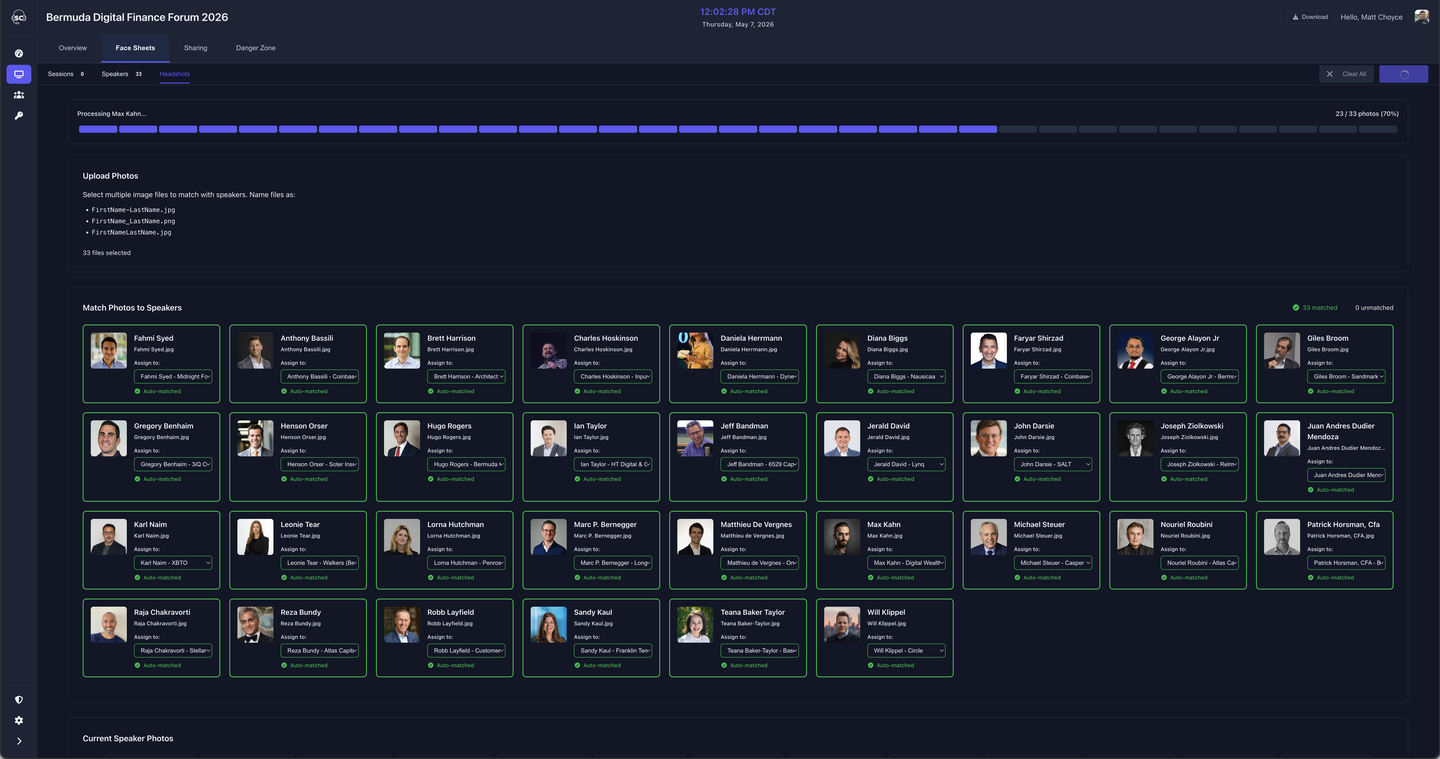
After selecting files, ShowCall shows you a Match Photos to Speakers review screen — how many were auto-matched, how many weren't, and a dropdown on each unmatched card so you can assign the right speaker manually before uploading.
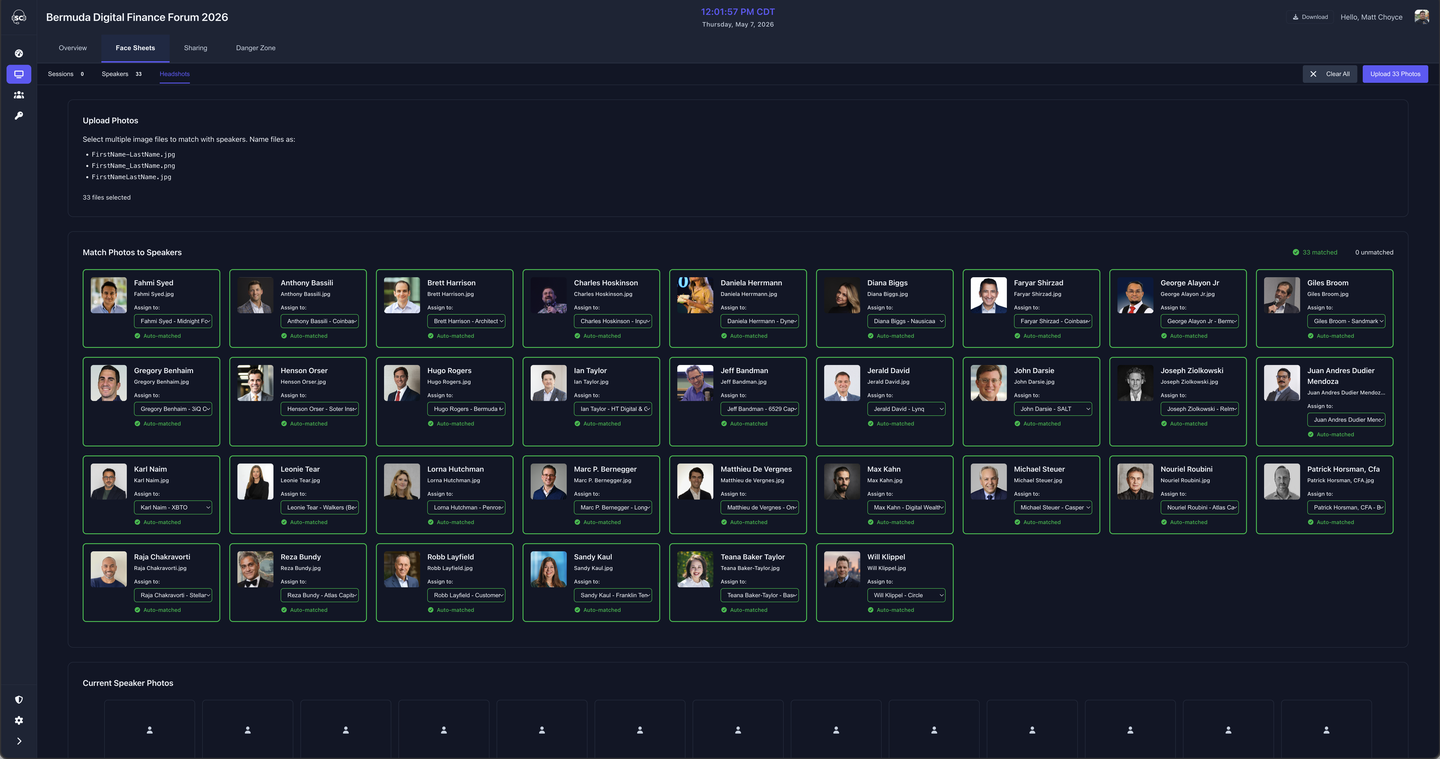
ShowCall uses AI face detection during upload to automatically center and crop each headshot around the speaker's face — so even landscape-oriented photos come out correctly framed on the face sheet.
- Supported formats: JPG, PNG (max 5 MB per image)
- Select multiple files in one go — no need to upload one at a time
- Headshots are stored at the show level and reused across all face sheets in that show
Import sessions
If your event schedule already exists in a spreadsheet, you can import face sheet sessions directly rather than generating them from a rundown or creating them one by one. Click Import Sessions from the Face Sheets tab.
Upload a CSV or Excel file and map the columns — session name, date, start time, end time, and speaker names. ShowCall matches speaker names against your library and populates the stage layout automatically.
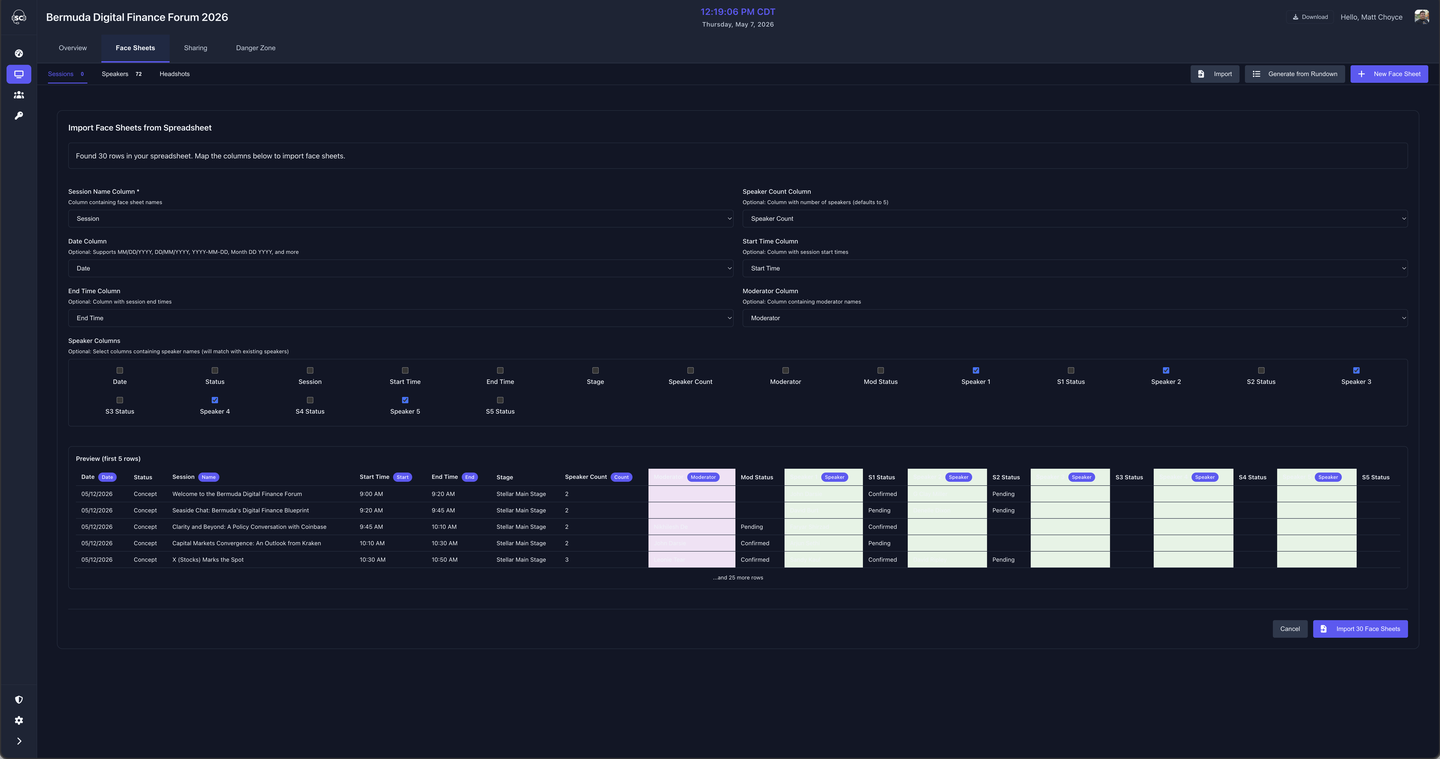
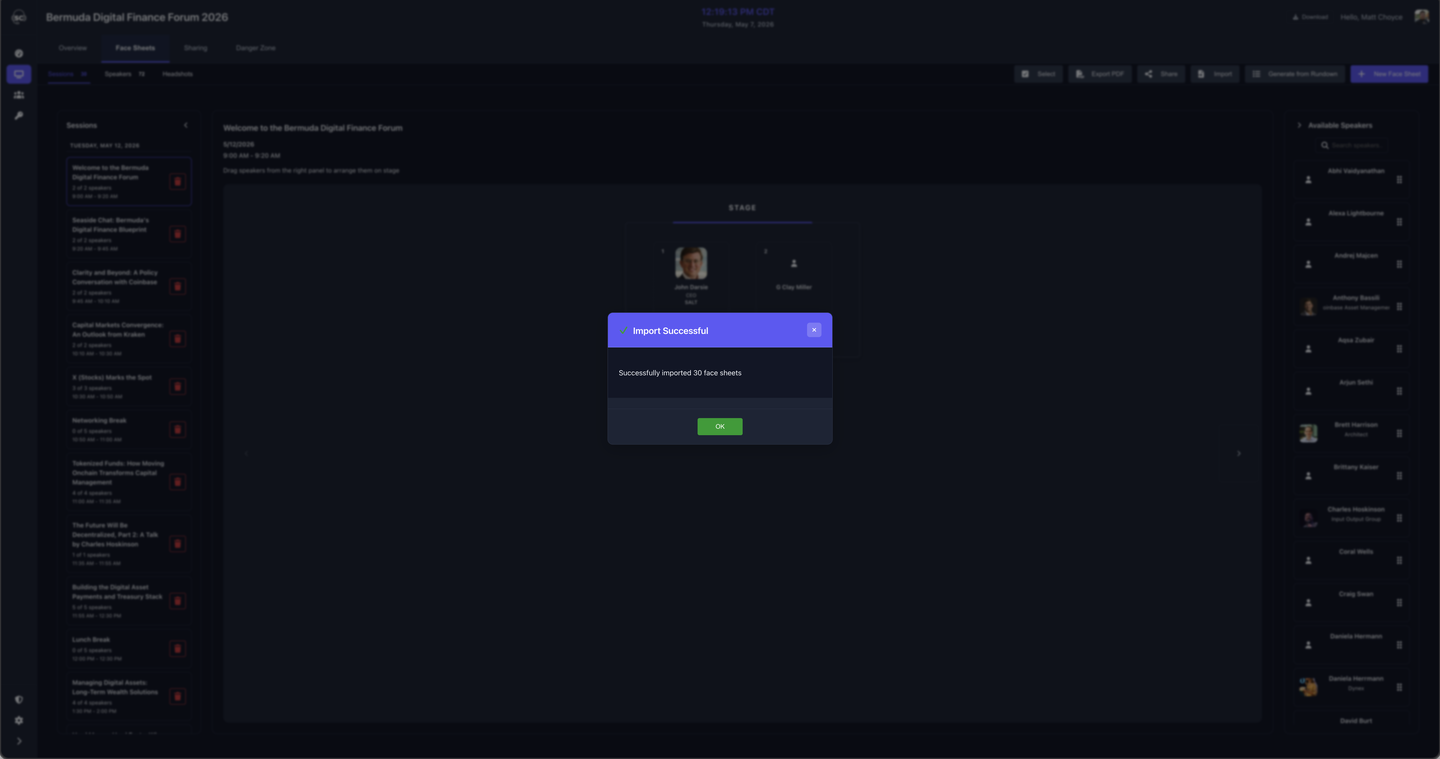
Once the mapping looks right, click Import Face Sheets. ShowCall creates one face sheet per row and confirms how many were added.
ShowCall matches speaker names in your spreadsheet against your speaker library. Names that don't match create placeholder slots in the stage layout — you can assign the correct speaker manually afterward.
Generate from rundown
The fastest way to create face sheets is to generate them directly from your rundown cues. ShowCall reads the speaker names from your cue data, matches them to your speaker library, and creates one face sheet per selected cue — all in one step.
There are two ways to start the generator:
- From inside any rundown: Options → Generate Face Sheets
- From the Face Sheets tab: click Generate from Rundown
Step 1 — Select a rundown
If you launched the generator from the Face Sheets tab, the first step is to choose which rundown to pull cues from. If you launched it from inside a rundown, this step is skipped — that rundown is already selected.
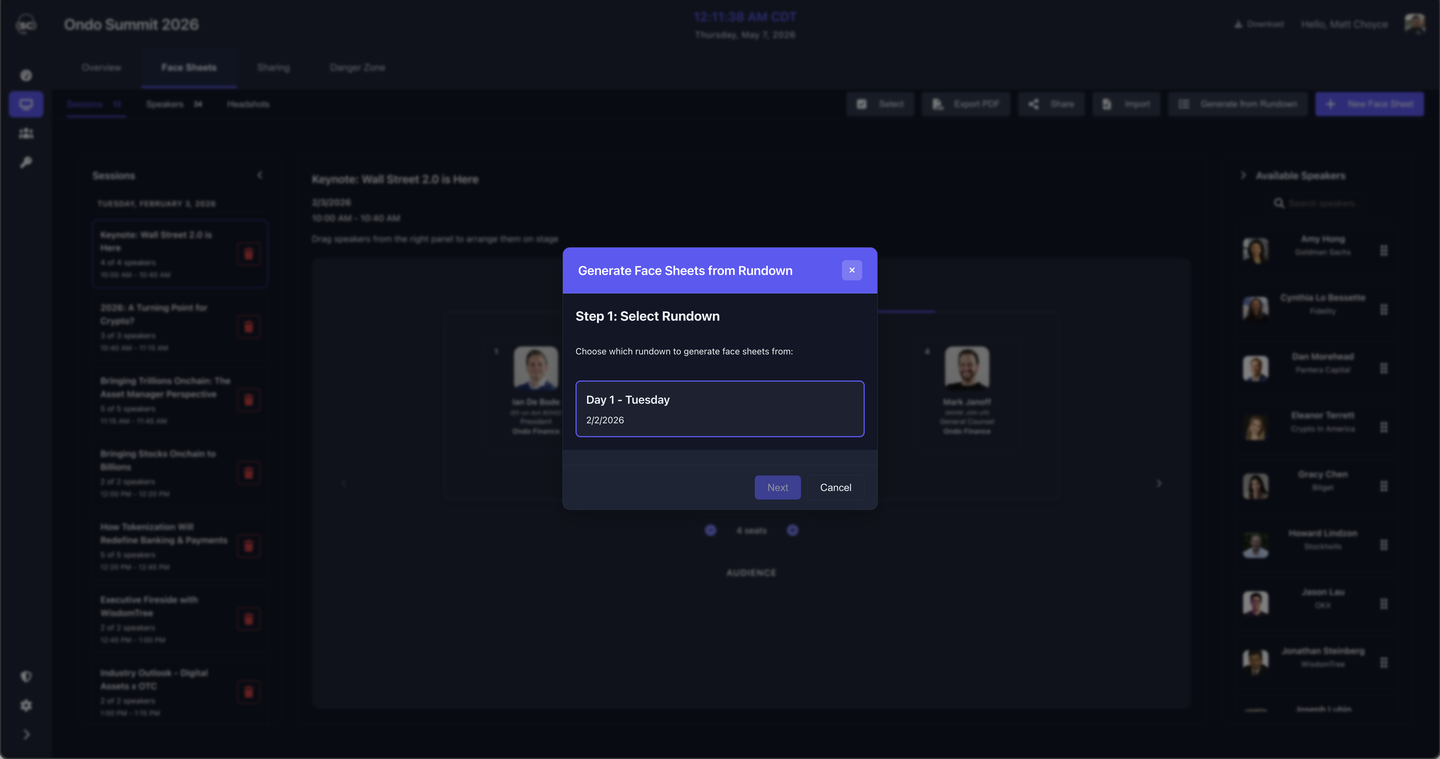
Step 2 — Select cues and speaker column
Choose which cues to generate face sheets for, and tell ShowCall which column in your rundown contains the speaker names. ShowCall supports any column — the built-in Speakers field or any custom text column you've set up.
Each checked cue becomes one face sheet. Uncheck cues you don't need (breaks, AV transitions, etc.).
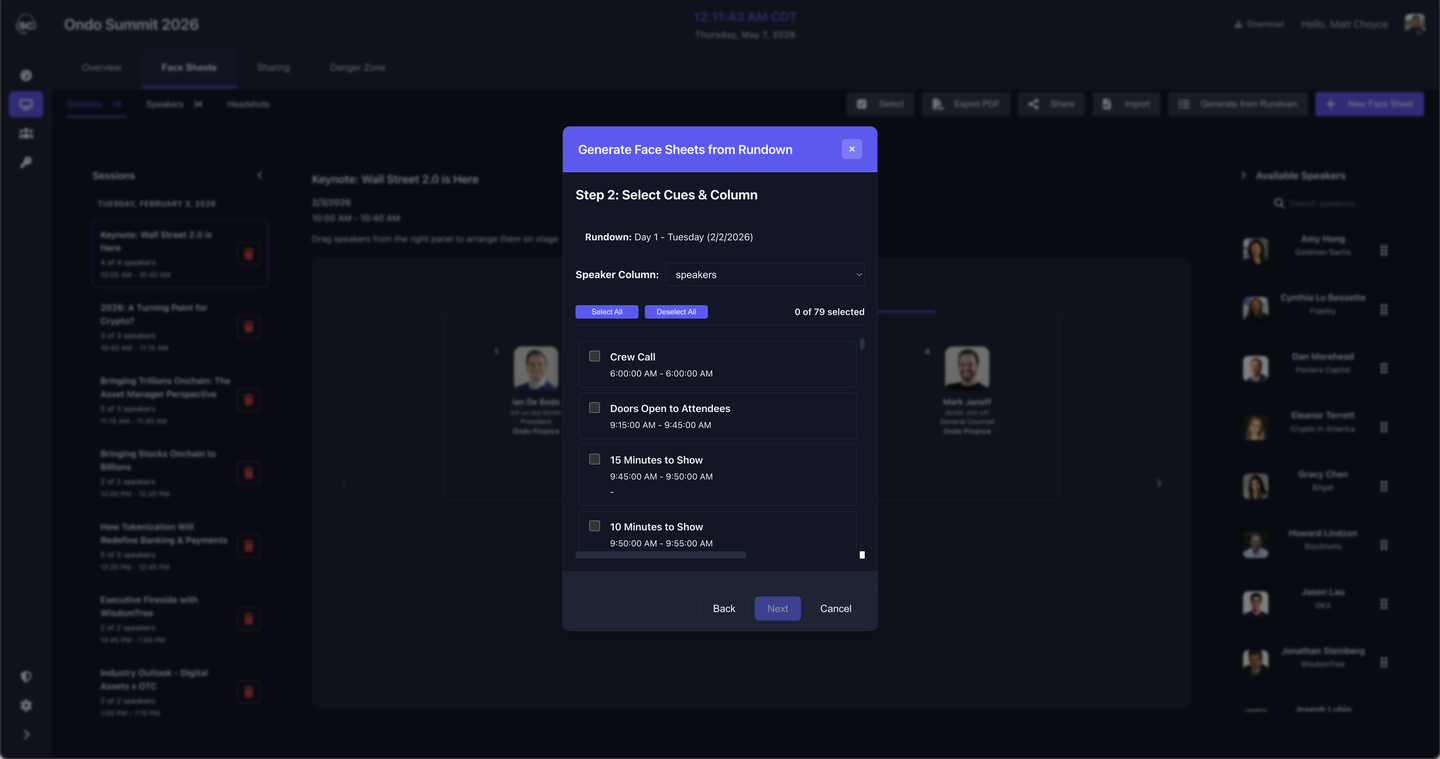
ShowCall matches speaker names from your cues against your speaker library using a fuzzy match — so "Jeff Sherman" in a cue will find "Jeffrey Sherman" in the library. Unmatched names still create a face sheet entry; you can assign a speaker manually from the stage layout editor.
Stage layout editor
Once face sheets are generated (or created manually), they appear in the Face Sheets tab. Clicking a face sheet opens the stage layout editor — where you arrange speakers in the order they'll appear on stage.
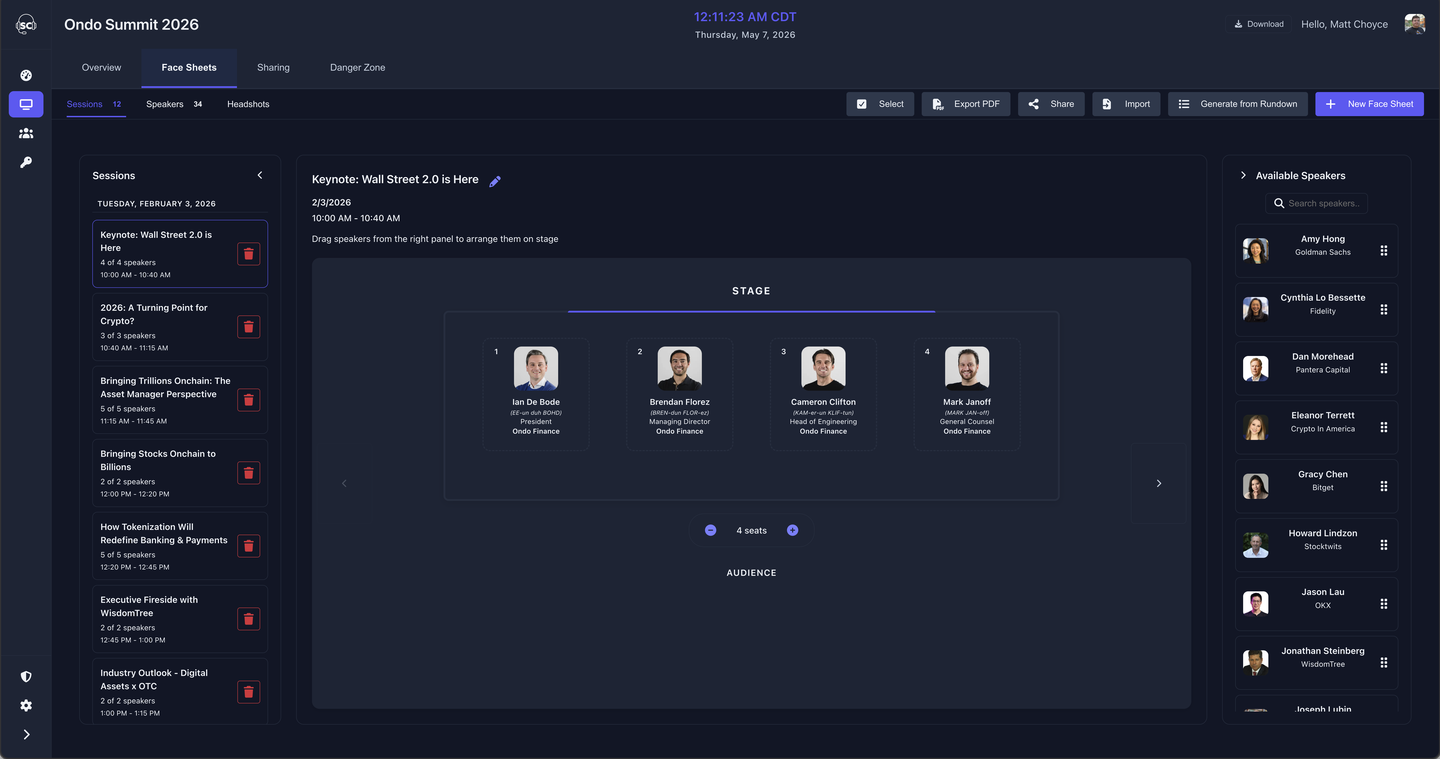
In the layout editor you can:
- Drag speakers into their on-stage positions — left to right mirrors the audience's view
- Edit session details inline — click the session name, date, or time to edit in place
- Add or remove speakers from the session without regenerating
- Assign a speaker from your library to any unmatched slot
By convention, position 1 (far left in the editor) is stage left — the speaker's left as they face the audience, which is the audience's right. Make sure your crew knows which convention you're using before the show.
Create a face sheet manually
You don't need a rundown to create face sheets. Click + New Face Sheet from the Face Sheets tab to create one from scratch — useful for rehearsal documents, green room sheets, or events where you're not using the rundown feature.
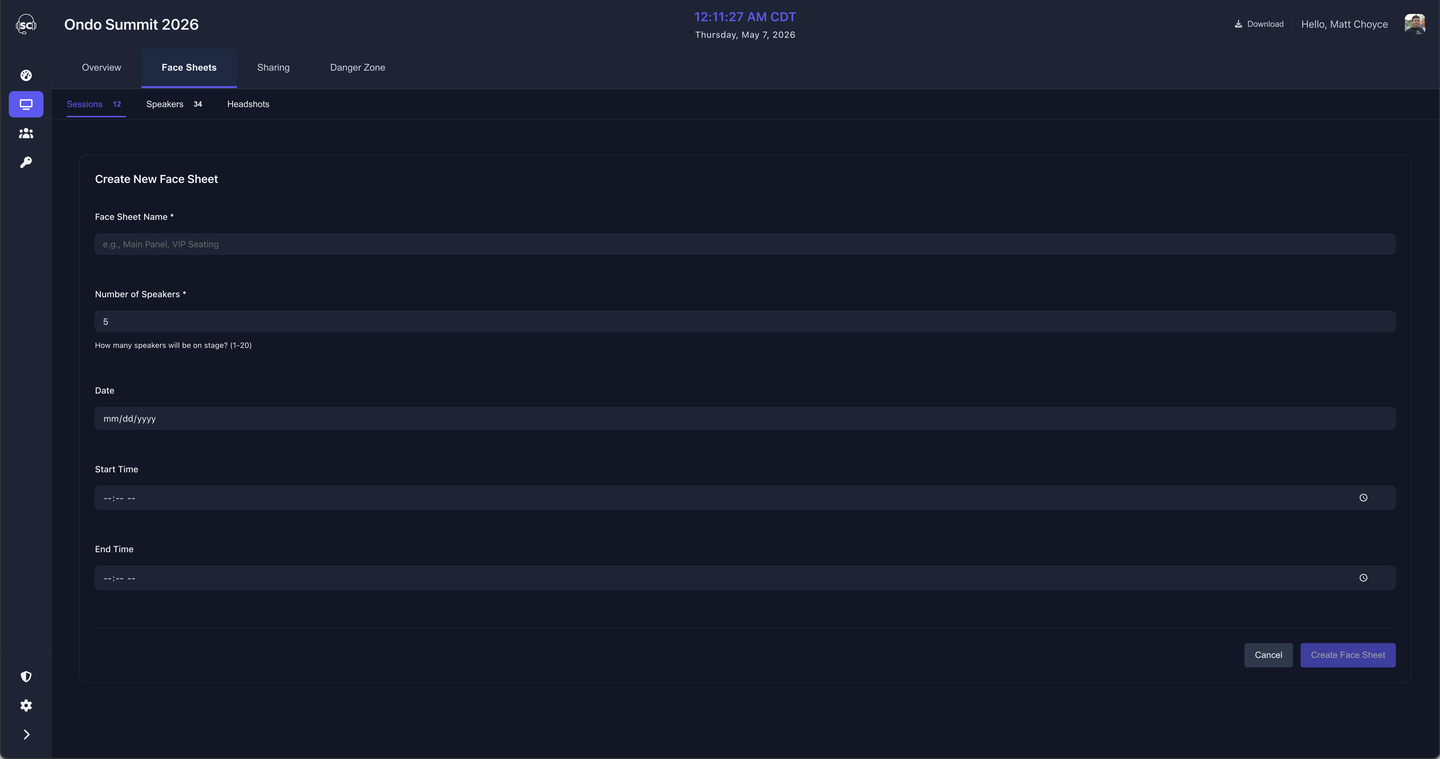
Fill in:
- Session name — e.g., "Opening Keynote" or "Panel: Future of Events"
- Speaker count — how many positions to create in the stage layout (1–20)
- Date, start time, end time — optional, shown on the printed face sheet