Getting Started with ShowCall
ShowCall is a professional event rundown tool. In under 10 minutes you can have a complete rundown built and ready to share with your crew. This guide walks you through everything from signing in to your first live show.
How ShowCall works
Every piece of content in ShowCall lives inside a three-level hierarchy. Understanding this structure up front makes everything else click.
- A Show is your top-level project. A multi-day conference is one show.
- Each show contains one or more Rundowns — a rundown represents a single sequence of events (one day, one session, one act).
- A rundown is made up of Cues — each cue is one row in your table with a name, duration, type, notes, and any custom fields you choose.
If you run recurring events (monthly all-hands, annual conference), create one show per event year and keep your rundowns inside it. That way all your history stays organized in one place.
The dashboard
When you sign in to ShowCall, the first thing you see is your dashboard. It gives you a high-level view of everything you have access to.
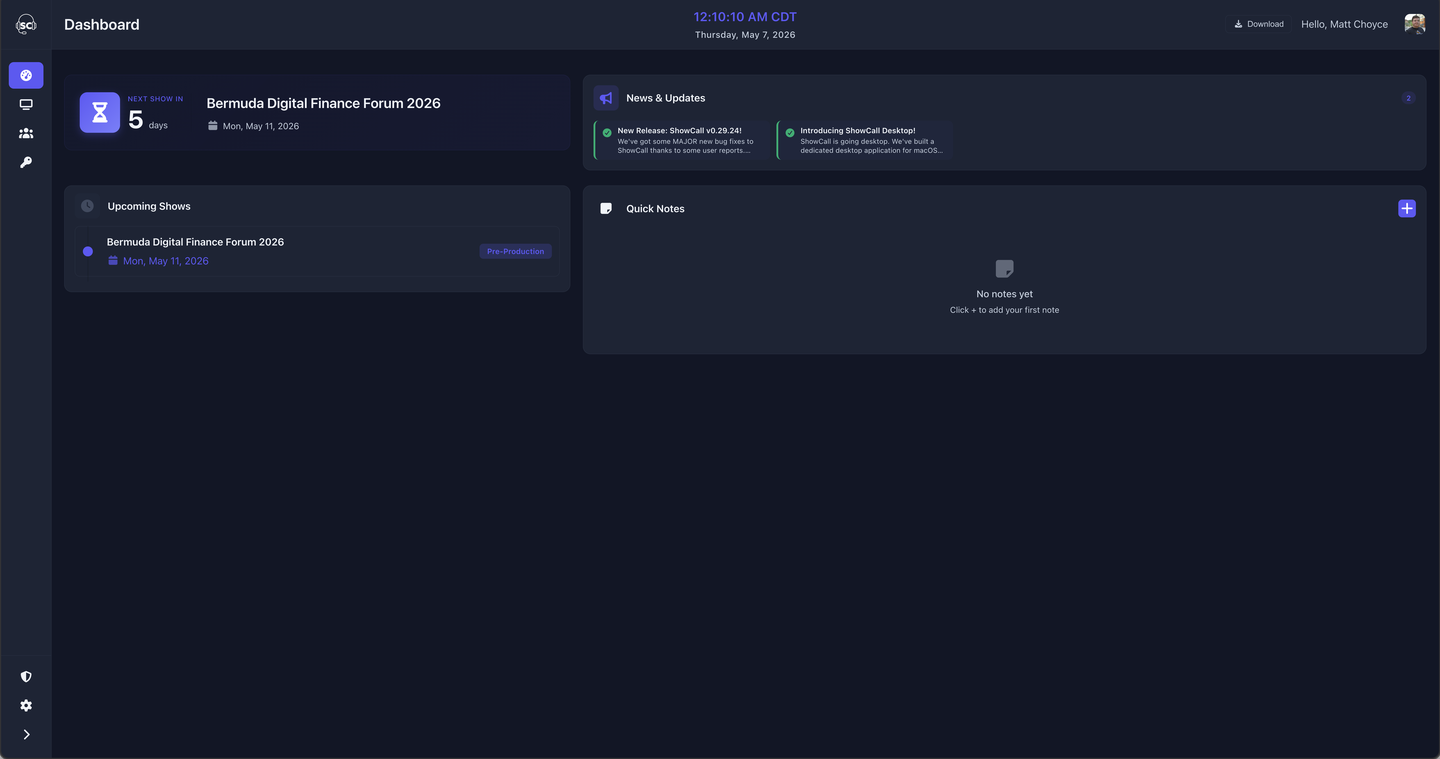
The dashboard shows your most recent shows and any rundowns that have been updated recently. The left sidebar lets you jump directly to Shows, Teams, or Settings.
Your shows
The Shows page lists every show you own or have been given access to. Shows are sorted by most recently updated.
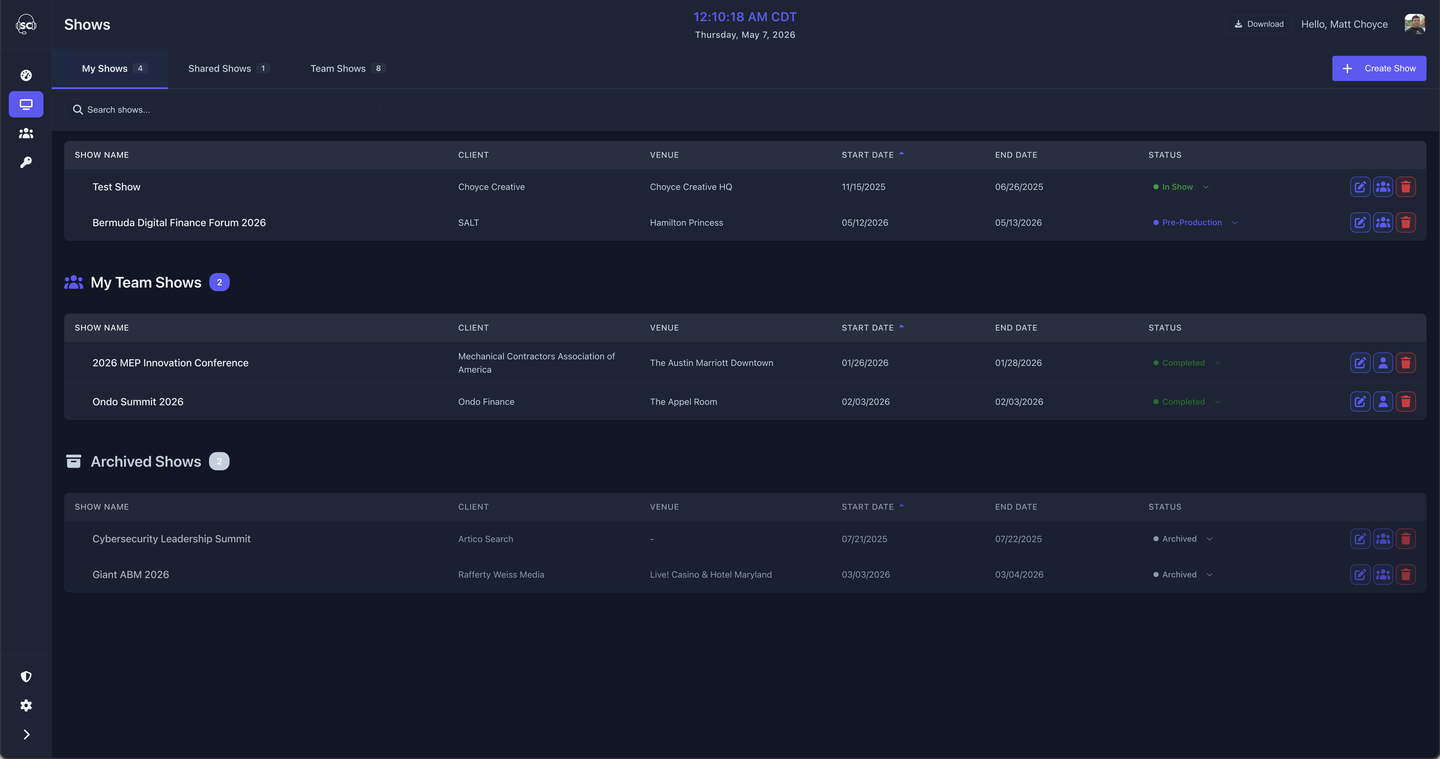
- Click any show card to open it and see its rundowns.
- Use the + New Show button in the top right to create a new production.
- Shows you have view-only access to are marked with a crew badge.
Create a show
Click + New Show from the Shows page. A dialog opens where you name your show and optionally set a date and venue.
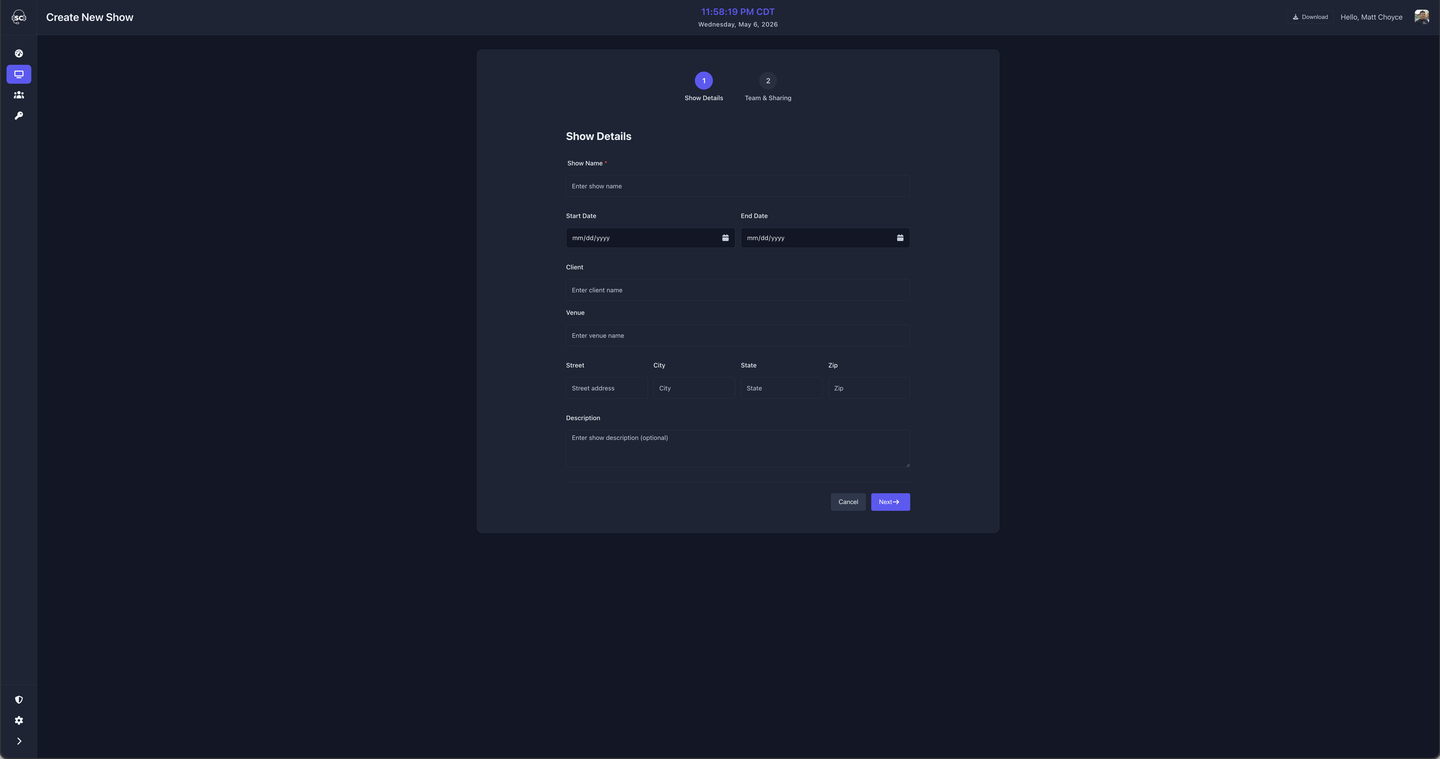
After naming your show, you'll be prompted to create your first rundown. A rundown represents a single ordered sequence — a day, a session, or an act.
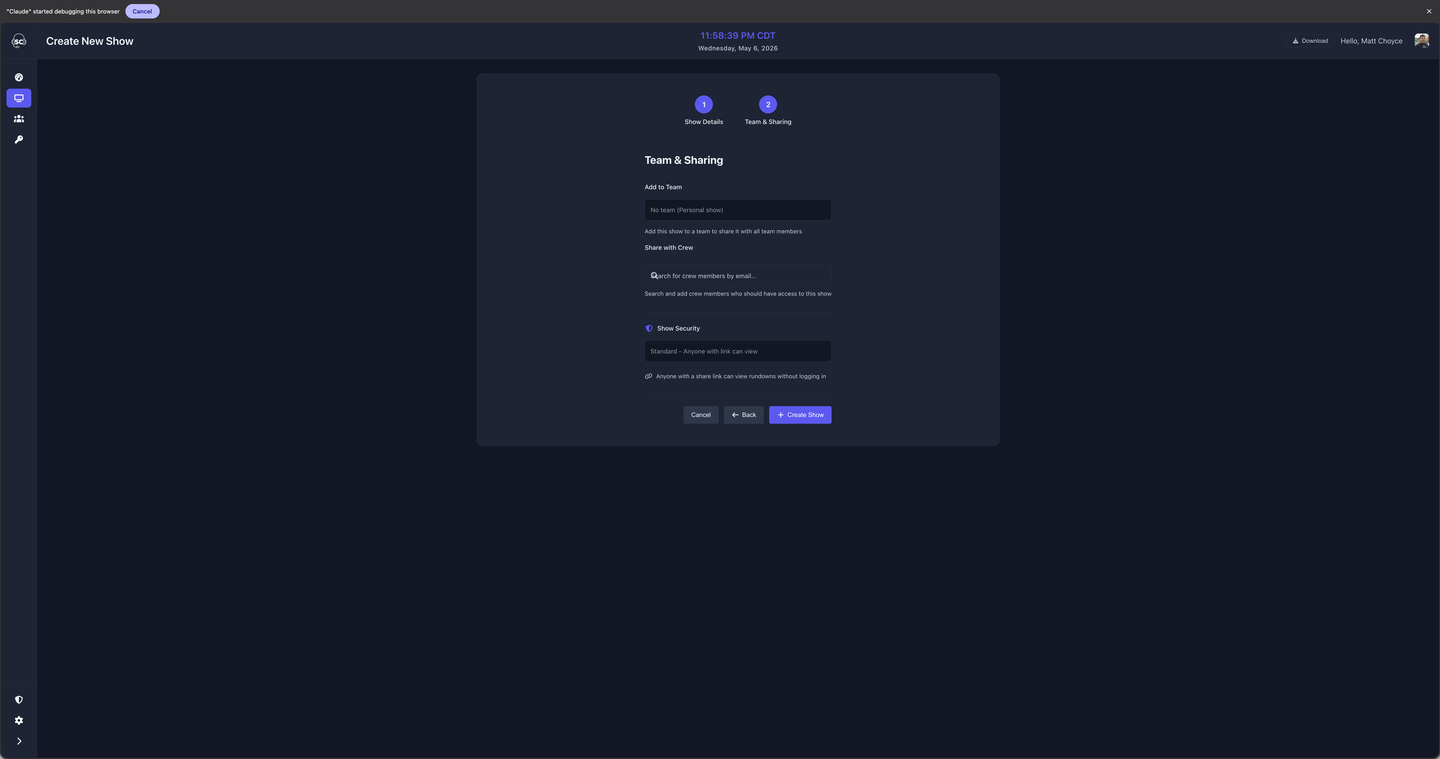
Use clear, dateable names for rundowns — "Tuesday 10 June" or "Act 2" — so your crew can immediately identify which sequence they're looking at.
Inside a show
Once your show is created you land on the show detail page. From here you can see all your rundowns, add new ones, and open any rundown for editing.
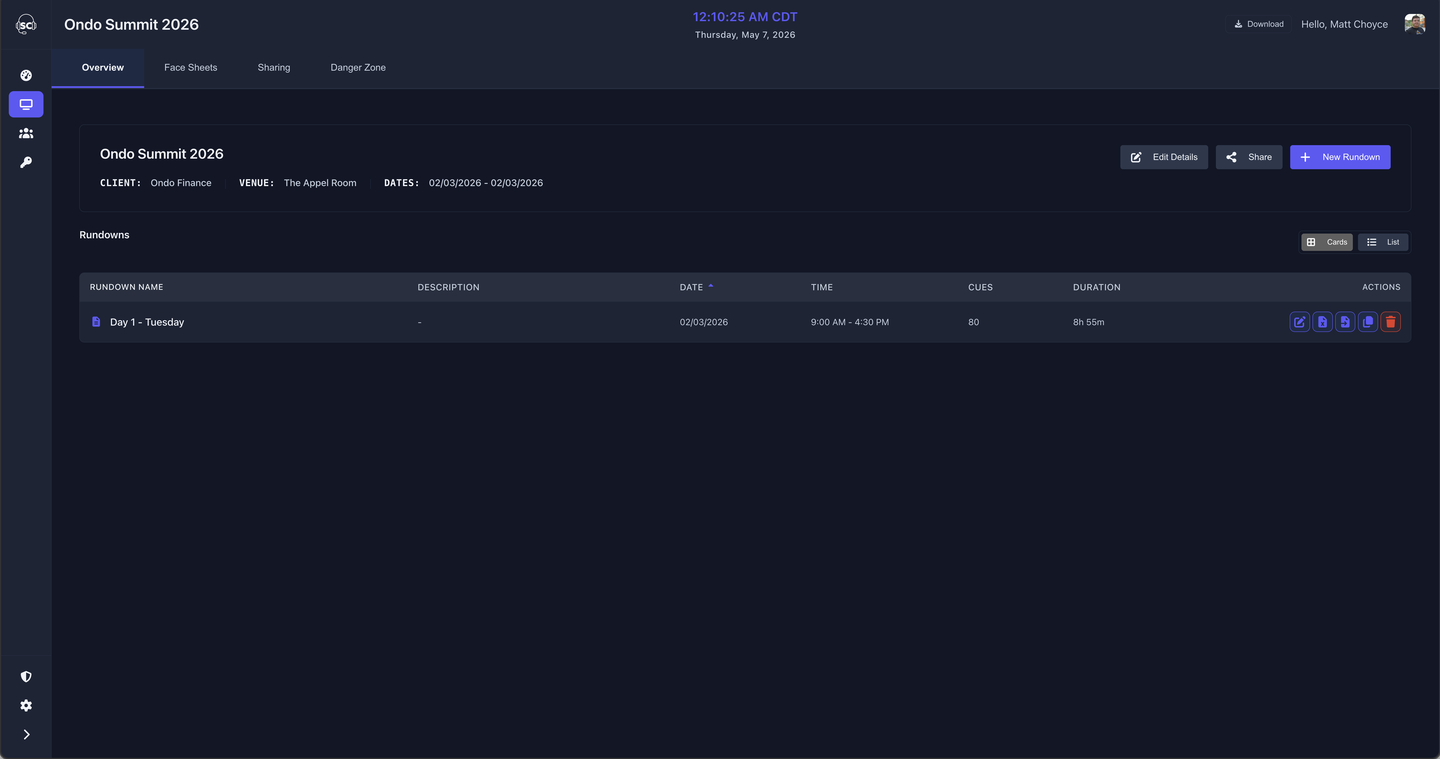
- Click a rundown card to open the full editor.
- Use + Add Rundown to create additional days or sessions within the same show.
- The three-dot menu on each rundown card lets you rename, duplicate, or delete it.
The rundown editor
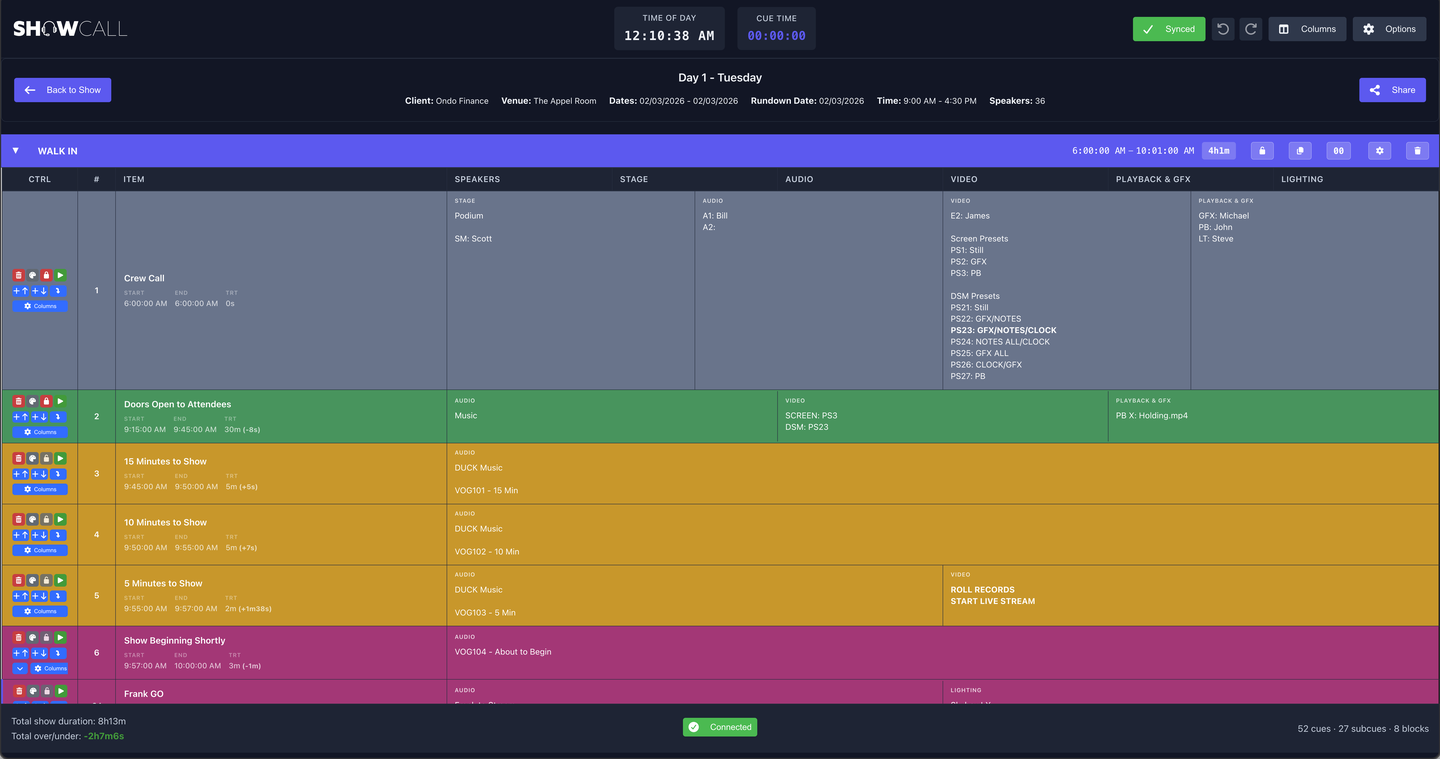
The rundown editor is where you spend most of your time in ShowCall. It's a table where each row is a cue — an individual event, segment, or action in your show.
Adding your first cue
Click + Add Cue in the toolbar, or press N to insert a new row. Each cue has:
- Title — what this moment is called (e.g., "Welcome Address")
- Duration — how long it runs (enter as
5:00for 5 minutes) - Type — a category tag like Speech, Video, Break, or a custom type you define
- Notes — freeform text for scripts, reminders, or instructions
Columns panel
Every rundown can display exactly the columns your production needs. Click the Columns button in the toolbar to show or hide fields, add custom text or checkbox columns, and reorder everything by drag-and-drop.
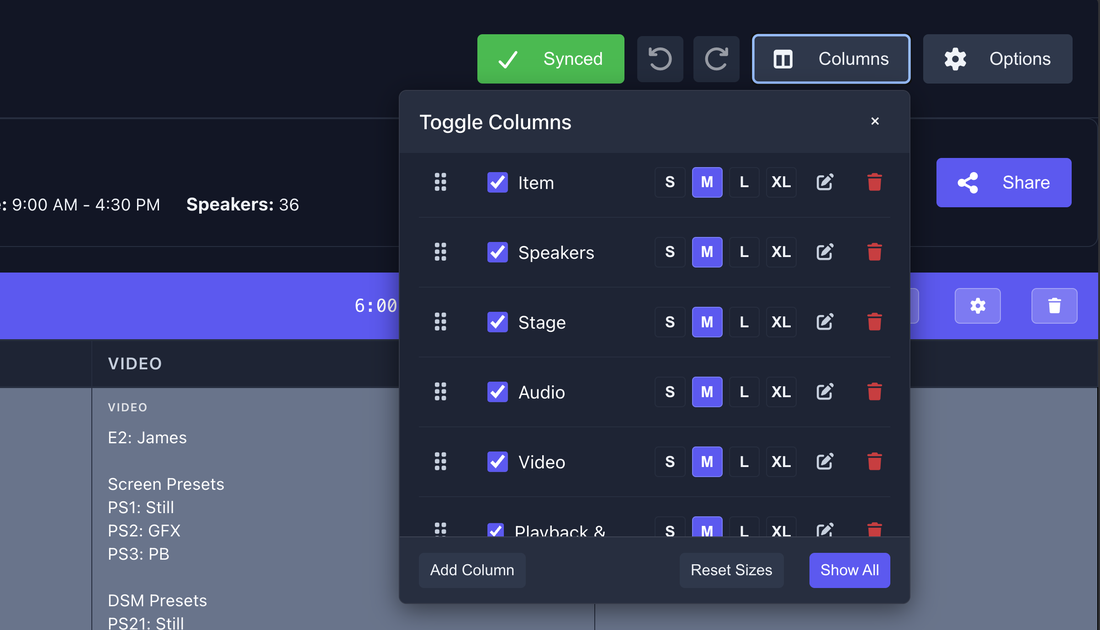
Each rundown in a show can have a completely different column layout — useful when Day 1 needs a speaker column that Day 2 doesn't.
Timing
ShowCall calculates running totals automatically. Set a Hard Start time on any cue to anchor your schedule to a wall-clock time — everything before and after will offset accordingly. Total runtime is always shown in the toolbar.
Options menu
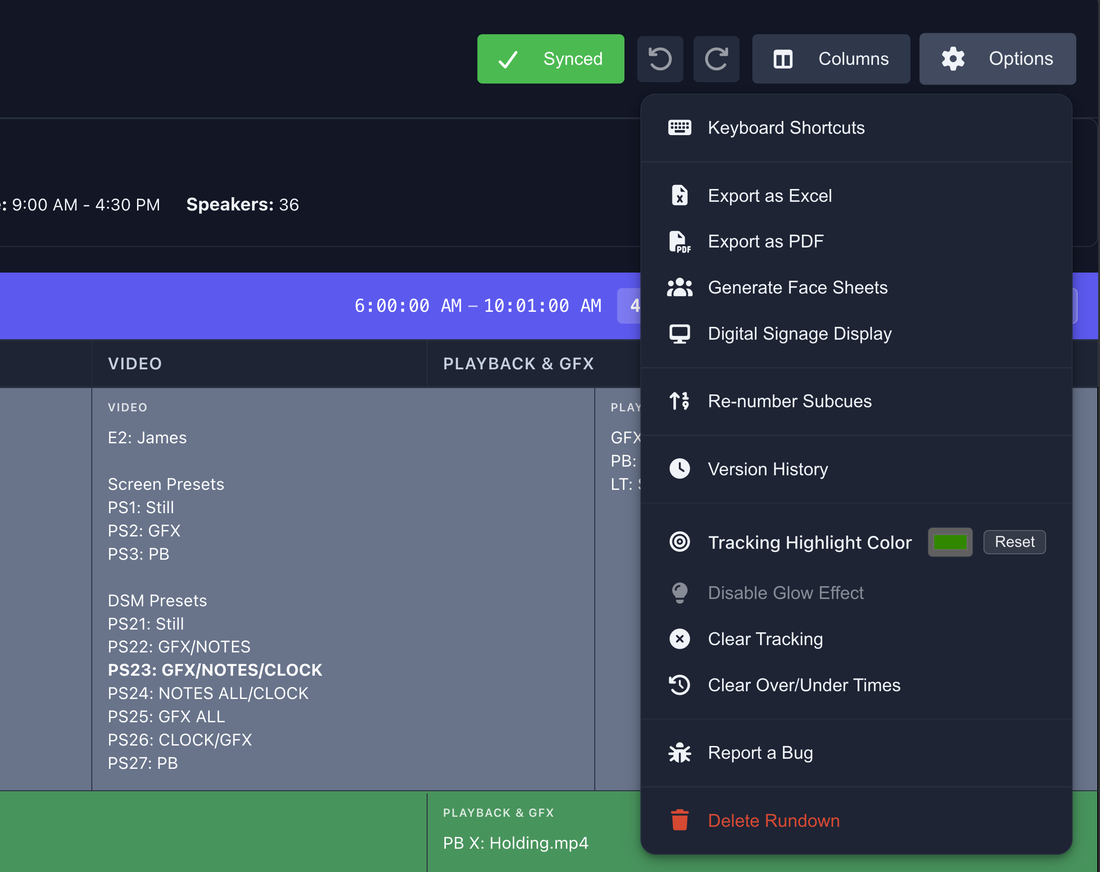
The options menu (⋯ icon in the top toolbar) gives you access to rundown-level settings: renaming, duplicating the rundown, adjusting the start time offset, and export options.
Next steps
You now know how to create a show, build a rundown, and add cues. Here's where to go next: